

- Introduction
- Basic concept: Vectorize your calculations, don’t iterate
- The Good Stuff – The “Cheat Sheet”
- Other Pandas Best Practices & Tricks
- Gotchas and Watch-out-fors with Pandas
- Wrap up
Introduction
TL;DR
- Python Pandas is a powerful open-source library that enables efficient data analysis and manipulation at scale, with options to limit memory footprint
- Properly applied, it yields 100x (or more) performance over traditional loops
- BUT – using it effectively can be counter-intuitive to common coding practices
- Adding to the challenge – it offers multiple ways to do the same thing but with dramatically different performance profiles and trade-offs
- If you want to dive in & skip the background & “why / how” – you can probably get a decent “crash course” by looking at the “Cheat Sheet” and skimming the example code snippets…
- Be warned – fully optimizing your code will be harder without the background understanding of why and how Pandas operates as it does.
On a recent project, I needed to re-pipe a large data flow. The data consisted of 10’s of millions of rows that needed to join another set of a few million rows. The combined set then needed a number of calculated columns added, before finally persisting to several storage solutions (cloud bucket, database, etc). And it needed to get done quickly, and be performant enough to run one or more times daily.
Enter Python’s Pandas and NumPy libraries. Used properly, they can yield a runtime improvement of 100x or more versus traditional iterative loops, and at a fraction the memory footprint.
Have a similar use case? Interested in performance optimization in general? Just love nifty tech solutions? Read on!
Sidebar: Why the heck are Pandas and NumPy so much faster than other data manipulations in Python?
- Compiled C libraries: Similar to other well-known high performance libraries like SciPy and TensorFlow, Pandas and NumPy pass most “real” processing off to precompiled & optimized C & C++ code, with the API layer and other “glue” running in Python.
- Adjacent memory spaces: Pandas / NumPy store series in adjacent memory spaces, facilitating fast caching and access at lower layers.
- Strong data typing: All calculations are performed on strongly-typed series “under the hood” – eliminating interpreter layer overhead for things like type checking
- Views on data: Many use cases of slicing and manipulating data in Pandas are changing references and offsets under the hood without changing underlying data, making these operations much faster.
Background : What is Pandas? And NumPy?
Pandas is a Python library designed for working efficiently with structured (typically tabular) datasets – supporting efficient analysis and calculations. It boasts a set of powerful functions that allow mass manipulation of data far more efficiently than traditional for [object] in [list] approaches.
It’s in turn based on NumPy, a lower level library for working on series of data efficiently. NumPy levers a number of features to dramatically improve calculation speed, such as an optimized data structure design.
Basic concept: Vectorize your calculations, don’t iterate
Pandas’ core Object: The DataFrame
The central object in Pandas is a DataFrame – a tabular data structure that:
- … is flexibly sized
- Can be heterogeneous in data type across (and even within) columns
- …though it is far more efficient to type one’s columns.
- Has a column-major implementation
- Supports several database-like operations for interacting with multiple data sets
- … is effectively comprised of a set of linked NumPy Series data objects
If you’re thinking of your data as sets / tables, similar to a SQL database, you’re in the right mindset.
Multiple Paths to the same destination – types of calculations

It’s important to understand the different operating / calculating modes in Pandas in order to get the most of it.
Many tasks in Pandas can be completed in one of three ways:
- Iterative calculations – similar to traditional loops
- Mapped calculations – efficiently applying a function to entire rows or columns at a time
- Vectorized calculations – highly performant operations that run on all values for a column at the same time.
Below, find a brief summary of each:
| ITERATIVE | MAPPED / APPLY | VECTORIZED | |
|---|---|---|---|
| What it is | Using traditional looping to operate on a dataframe as if it was a list of lists. | Using special Pandas functions to apply a function to each row or column in the dataframe efficiently | Performing operations on an entire column at a time, taking full advantage of a Dataframe’s column-major design and Pandas memory optimizations. |
| Average Performance | Slowest | Faster (2x – 10x on average) | Fastest (10x – 500x – simple calculations 50 – 500x, more complex operations still 10x – 50x) |
Iterative and even mapped / apply() based approaches should be fairly familiar in structure to most developers.
Vectorized calculations, on the other hand, can be a bit of a different beast, both in terms of syntax and how to think about them.
Vectorized Calculation – key concepts
Operating on an entire column at a time: The core of vectorized calculations – you are doing operations on an entire column at once. So, a simple operation on a dataframe with 100,000 rows:
dataframe["value_column"] += 5
…. is in fact adding 5 to every value in “value_column” for all 100,000 rows, at once.
Selecting and operating on data with boolean masks: More complex vectorized operations make use of boolean masks to select rows to be impacted by a calculation, for example:
# Define a boolean mask
rows_of_interest = df["customer_age"] < 60

# use it to apply an operation only to data for customers under 60
df.loc[rows_of_interest, "annual_discount"] = \
    df.loc[rows_of_interest, "annual_discount"] * 1.1

# The previous line could also be expressed as
# df.loc[rows_of_interest, "annual_discount"] *= 1.1
In this example, rows_of_interest becomes a series of true / false values of the same length as the dataframe. The series’ values indicate which rows’ indices to perform subsequent operations on. Rows where the customer_age value is under 60 will be True, others False in the series. This is then used to multiply the value of “annual_discount” for only those rows.
Vectorized Built-in functions: Pandas and Numpy have numerous built-in functions to allow you to perform more complex operations on whole columns, such as:
# ".str" allows common python string functions on some or
# all of a column at once.
# For rows where the column "email_subscribed" value is True, split
# the "email_address" column on the @ sign, treating each
# resulting item as a column, and assign the second column (the
# portion after the @) to the column "email_domain" for the same
# rows.
df.loc[df["email_subscribed"] == True, "email_domain"] = \
    df.loc[df["email_subscribed"] == True,
           "email_address"].str.split("@", explode=True)[1]

# Replace values in a column matching specific values using a
# dictionary lookup
sales_rep_remapping = {
    'John Smith': 'Jonathan Smith-Williams',
    'Jane Doe': 'Janet Doe-Rogers'
}

# Vectorized operation: replace sales_rep values only where
# city is "New York"
mask = df["city"] == "New York"
df.loc[mask, "sales_rep"] = \
    df.loc[mask, "sales_rep"].replace(sales_rep_remapping)
The Good Stuff – The “Cheat Sheet”
Core Operations Syntax
It would take a book to cover detailed examples of every core operation and function in Pandas & NumPy. But, we can cover the basics briefly enough.
See the below “Cheat sheet” as a reference. In it you’ll find a selection of code snippets calling out common operators, functions, & patterns. Each will demonstrate how to accomplishe that operation in each of the 3 calculation methods mentioned above (iterative, mapped, vectorized).
DataFrame on DataFrame – merges, joins, etc.

There are a number of options when joining dataframes together – notably:
- Individual columns or sets (lists) of columns can be easily copied over by simply assigning them:
# Simple direct copy of 2 columns, assuming similar dataframe
# structures / sizes
df1[["col1", "col2"]] = df2[["col1", "col2"]]

# Alternate syntax- copy "col1" and "col2" from df2 to df1 as
# "result1" and "result2"
df1 = df2.assign(result1=df["col1"],
                 result2=df["col2"] * 2)
- Combining rows or columns with gaps or other structural issues – is most commonly accomplished with the concat() function.
- Concat can be called to combine rows (axis=0) or columns axis =1).
- This will match rows or columns based on aligning specified column(s).
- If the two dataframes are incompatible in shape – e.g. not all columns or rows match up – Pandas will insert “NaN” values for any field that did not have a value.
# setup some test dataframes
df1 = pd.DataFrame({
    'A': [1, 2],
    'B': [3, 4]
})

df2 = pd.DataFrame({
    'B': [5, 6],
    'C': [7, 8]
})

# Concatenate - combine rows.  Matches on column name then adds.
# Ignore index will reset a new index on the resulting row
result = pd.concat([df1, df2], ignore_index=True)

print(result)
# Output will look like this:
#    A    B    C
# 0  1.0  3.0  NaN
# 1  2.0  4.0  NaN
# 2  NaN  5.0  7.0
# 3  NaN  6.0  8.0

# What if you did this by combining columns instead?
# Matches on row index and then combines.
result2 = pd.concat([df1, df2], axis=1)
print(result2)

#  Output would look something like:
#    A    B    B.1    C
# 0  1.0  3.0  5.0  7.0
# 1  2.0  4.0  6.0  8.0
- Combining dataframes based on matching specific columns between them (not indices) – This is conceptually similar to a SQL join, and is accomplished with the merge() function. Common arguments:
- how: “inner”, “left”, “right”, “outer” – similar to SQL, whether to return only rows that match the matching column in both (inner), all rows from the first dataframe with any that match in the second joined in (left), all rows in the second dataframe with any matching the first joined in (right) or all rows from both dataframes with any that match either joined in
- on, left_on, right_on: “on” indicates which common column name to match rows by. left_on and right_on are used when the columns to match by have different names in each dataframe.
- suffixes: tuple of strings, used to rename columns when there is a repeat column name between the frames. The first supplied string is appended to the column name from the first frame, the second to the overlapping columns from the second frame.
# declare some inputs
customers = pd.DataFrame(
    {"ID": [1,2,3], "Name": ["John", "Janet", "Bob"],
     "Age": [22, 25, 31], "Nickname": ["Johnny", "", "Rob"]})

customer_details = pd.DataFrame(
    {"ID": [2,3,4], "BDay": [ "5/21", "8/16", "6/11"],
     "City": ["New York", "Memphis", "Chicago"],
     "Nickname": ["Jane", "Robot", "Mick"]})

inner_df = pd.merge(customers,
                    customer_details,
                    on="ID", how="inner")

print(inner_df)
# Results would look something like this
#     ID   Name  Age Nickname    BDay  City     NickName.1
# 0   2    Janet 25              5/21  New York Jane
# 1   3    Bob   31  Rob         8/16  Memphis  Robot

left_df = pd.merge(customers,
                   customer_details,
                   on="ID", how="left",
                   suffixes=("_base", "_detail"))

print(left_df)
# Results would look something like this
#     ID   Name  Age Nickname_base BDay  City      NickName_detail
# 0   1    John  22  Johnny        NaN   NaN       NaN
# 1   2    Janet 25                5/21  New York  Jane
# 2   3    Bob   31  Rob           8/16  Memphis   Robot
Other Pandas Best Practices & Tricks
I/O support: CSV, SQL, JSON etc.
Pandas has built in support for reading & outputting many formats, including popular options like CSV, JSON, Parquet and SQL databases.
SideBar: Join()
Similar to merge(), join() can combine two dataframes by finding matching rows and “gluing” all the columns together. Unlike merge(), join() operates on the index of the rows – which is often assigned by Pandas as a default.
Most practical use cases will find merge() more applicable. But, in the event you’ve defined custom indices on your dataframes, or are merging data sets created with aggregation functions, join() may be appropriate.
Most of these can be accessed with simple read_[resource type] or to_[resource type] functions that share many parameters:
# Read in data from file - only keep 3 specified columns
customer_dataframe = \
    pd.read_csv("/home/my_dir/cust_input.csv",
                usecols=["cust_id", "Name", "Age"])

# Do some operations on the dataframe - custom function
customer_dataframe = dataframe_calcs(customer_dataframe)

# Put the resulting data in a SQL Table - example using SQLAlchemy
# Obviously use real error checking etc. in actual code
user = 'db_user'
password = 'BadPass123'
host = '127.0.0.1'
port = 3306
database = 'customer_data'

connect_string = \
    "mysql+pymysql://{0}:{1}@{2}:{3}/{4}".format(
        user, password, host, port, database)
db_engine = create_engine(connect_string)

# Write data - skip / don't output the index, write data to
# the end of existing tables
customer_dataframe.to_sql(
    "basic_customer_data", con=db_engine,
    index=False, if_exists="append")
Chunkified operations
Most pandas input / output operations support the chunksize parameter – which specifies a number of records to process “at once” – this allows partial loading of the dataframe, which can be useful to limit the memory footprint of large datasets
A common pattern is “open data source with chunks, apply calculations by chunk, output data destination by chunk.”
# get data in chunks, modify it, and then write it out in chunks
for data_chunk in pd.read_csv("/home/some_dir/some_file.csv",
                              chunksize=100000)
    data_chunk = operate_on_data(data_chunk)

# When we use a chunksize outside of an iterator
# like a for loop, we still allow for reduced
# transaction size and table locking.
pd.to_sql("data_db_table", con=some_db_engine,
          index=False, if_exists="append", chunksize=100000)
Design Concerns / patterns with chunks
With chunks, the core thing to think about, particularly if you’re thinking of iterating through your chunks and operating on them, is “Are my rows independent of each other?”
If they are, your dataset is a good candidate for chunking. This will save RAM footprint and potentially load or write data more quickly. Even if you must load a full dataset at once, chunking up I/O reduces resource contention. This in turn allows other applications to interleave access to shared resources.
Typing your data explicitly (& why it’s a good idea)
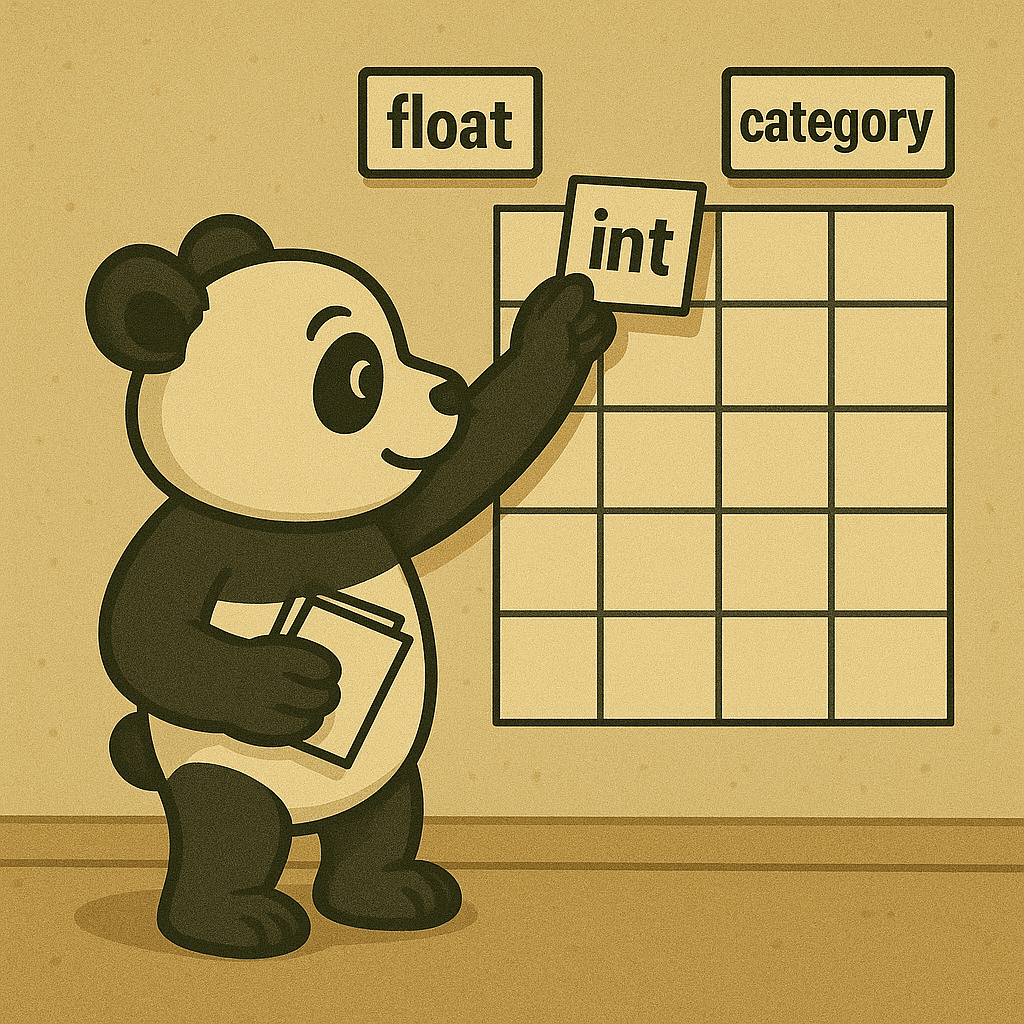
By default, Pandas creates dataframes with object data types – which is very functionally convenient – you can assign any value to any location in a dataframe. However, this is pretty terrible from a memory standpoint, and not great for performance either.
Whenever possible you should type your data. This can cut your memory footprint by 50 – 75%, and also yields a performance improvement, particularly on vectorized functions. The lower-level code won’t have to “figure out” a data type to use or remap any values if you do so. While not as significant a boost as moving from iterative to mapped or vectorized calculations, it can still yield a 2 – 5x performance boost.
Typing Option 1: Typing on ingest
If your input data is well-formatted already, the easiest way to generate a typed dataframe is to type on ingest:
# declare a dictionary of data types
data_types = {
    "user_name": "string",
    "age": "int8", # As of 2025, no one will be > 255 years old
    "state_of_residence": "category", # Big memory savings for string values with limited numbers of options.
    "account_balance": "float64"
}

# Passing the dictionary of data types to the ingest
typed_dataframe = pd.read_csv("/home/customer_data.csv",
                              dtype=data_types)
This will work with convertible data – if an input value is too far off from the target (e.g. a string in a column specified as int), you’ll get a ValueError at runtime.
Typing Option 2: Typing an existing dataframe
Often, we need to read mixed data in, and then perform operations on it to clean and normalize it. Once that’s done, we can still reap subsequent memory and speed benefits by applying typing to the already-loaded data. You have a few options here:
| Function | Description | Error Handling | Other Args / Notes |
|---|---|---|---|
| astype() | convert a single column to a specified type, or take a dictionary of column –> type mappings to convert several at once. | errors argument can only specify “fail” (loudly fail) or “ignore” (silently do nothing if a conversion is not possible for at least one item) | |
| to_numeric() | attempt to find a workable numeric data type, with error & null handling by default | errors argument includes “coerce” option, which will replace unconvertable values with NaN. | |
| to_datetime() | attempt to convert to date/time types, with error & null handling by default | supports coerce option for errors argument, similar to to_numeric() | Either specify format or let Pandas try to figure it out (optional format argument) |
| convert_dtypes() | convert all column in a dataframe, let Pandas make its best guess. |
Some of these functions are applied directly to an existing dataframe, though the “to_*” functions are called directly and passed a series or dataframe
typed_dataframe = pd.read_csv("/home/customer_data.csv")

typed_dataframe["user_name"] = \
    typed_dataframe["user_name"].astype("string")
typed_dataframe["age"] = \
    typed_dataframe["age"].astype("int8")
typed_dataframe["state_of_residence"] = \
    typed_dataframe["state_of_residence"].astype("category")
typed_dataframe["account_balance"] = \
    pd.to_numeric(typed_dataframe["account_balance"],
                  errors="coerce")
Saving Boolean Masks & Combining them with operators
Boolean masks created by Pandas related statements may be saved to variables and re-used in further operations. It’s helpful to save mask for key conditions you base logic on, as this will improve both readability and speed.
You can also use bitwise logical operators (&, |, ^, ~) on boolean masks, which returns masks of the same shape. The resulting masks’ values will be adjusted as if they were bits (False = 0, True = 1). e.g.:
demo_df = {"customer": ["John", "Jane", "Bob"],
           "age": [21, 35, 26]}

customers_over_30 = demo_df["age"] > 30
print(customers_over_30)
# Results will look something like:
#     0
# 0   False
# 1   True
# 2   False

customers_30_and_under = ~customers_over_30
print(customers_uder_30)
# Results will look something like:
#     0
# 0   True
# 1   False
# 2   True
Complex filters can be efficiently created and ANDing and ORing simpler ones together.

Debugging Vectorized Code (& how to write more maintainable vectorized code)
If your Pandas code is using iterative or mapped approaches, debugging and transparency are largely the same as other programming. You can readily log or print statements with status or diagnostic information for individual records.
For vectorized code, the “unit” of operation is an entire series or dataframe, potentially millions+ of rows. You can’t simply print that to a log and expect to spot a problem record. Nor can you carefully inspect data values line by line in a debugger.
Instead, there are a few best practices to follow:
- Think of potential error cases, and pre-scan for them using boolean masks and similar approaches.
- Either filter out rows in question or handle them gracefully. up front
- Where possible, use options like errors=”coerce” to ensure continued execution,
- …And plan for possible resulting NaN values in your code accordingly
- Make sure most or all operations are wrapped in try / except blocks
- And output the details of any caught exceptions as well as a full stack trace
- Consider before / after data comparison when making changes to existing code,
- Pandas even makes it simple to script a detailed comparison of results.
Random Data Generation for Test etc.
Pandas and NumPy are a great starting point for building out test data for many purposes. In particular, NumPy has a number of random data series generators that Pandas incorporates and expands on. This topic is deep enough for a full article unto itself, but here are a few key functions & examples:
Basic NumPy generator initialization
Before doing anything major, you need to initialize one or more rng object(s) from NumPy
import pandas as pd
import numpy as np

rng = np.random.default_rng()  # optionally provide seed
With that, you have several options:
| FUNCTIONAL | PURPOSE | ARGUMENT DETAILS / NOTES |
|---|---|---|
| rng.uniform() | Generate a uniform distribution between 0 and 1 | |
| rng.normal(0, 5) | Generate a normal distribution. Default to mean 0 std=1 | * Mean of distribution * Std deviation / spread Values between 0 and 1 if min / max not specified |
| rng.integers(1, 100, size = 100, endpoint=True) | Generate a series of integer values. | * Min Val * Max Val (excluded unless endpoint=True) * Size – integer for 1-d series, or tuple for 2-d list If only one min / max supplied, will use “0” as min and supplied value as max. |
| rng.choice([“Op1”, “Opt2”], size=1000, p=[0.75, 0.25]) | Generate a series of size comprised of the supplied list of options. | * Optional p argument is probabilities – by default all options are equally probable, this allows overrides of that. * providing replace=False will prevent repeats from the population of choices |
| <array>.shuffle() and np.random.permutation() | Randomly re-orders an array / list. | Do it either in-place (shuffle()) or return a copy (permutation()) |
Many of these functions take an optional dtype argument, allowing a specific data type to be specified, e.g.:
# specify a specific integer dtype for output
rng.integers(0, 256, size=(10, 10), dtype='uint8')

# Create a series from a set of options
# Use category dtype for highly optimized mem footprint
choice_opt = ["A", "B", "C", "D"]
probs = [0.1, 0.3, 0.25, 0.35]

rng.choice(options=choice_opt, size=10000, p=probs, dtype='category')
Other NumPy Functions
If needed, NumPy and Pandas support many other distributions – including
- multinomial()
- binomial()
- poison()
- lognormal()
- … and many more.
Test Data Enhanced: Pandas Generator Functions
Pandas took the great base that NumPy had established and turned it up to 11 with a few key add-ons:
| pd.date_range(“2025-01-06”, “2025-04-30″, freq=”D”) | Generate dates or times in the range provided. | Can take a start and end date, or a start date and # of periods (e.g. periods=10) to generate that many data points. freq determines frequency – e.g. “D” (Days), “H” (Hours), “M” (month end), “MS” (Month Start) etc. See examples below. |
| pd.period_range(“2025-01″, periods=12, freq=”M”) | Similar to date range, but represents SPANS of time. | Often specified as a partial start date, a number of periods, and frequency. See examples. |
| pd.interval_range(0, 10, periods=5) | Creates tuples representing spans of values. | Either specify start / end and periods, or specify start, and periods, and freq. Specify whether to include endpoints with closed=[“left”/”right”/”both”/”neither”] |
Examples using these more advanced functions:
################ TIME SERIES EXAMPLES #####################
# All generate a series that could be used to populate
# a dataframezZBusiness days (excludes weekends)
business_days = \
    pd.date_range('2023-01-01', periods=20, freq='B')

# Custom intervals
every_3_days = \
   pd.date_range('2023-01-01', periods=10, freq='3D')
every_2_hours = pd.date_range(
    '2023-01-01 09:00', periods=12, freq='2H')

# Quarter frequencies - also support "QS" for quarter start
quarter_end = pd.date_range('2023-01-01', periods=8, freq='Q')
# Quarter end

# Annual frequencies - like M / MS, you can also supply
# "AS" for year start
yearly = pd.date_range('2020-01-01',
                        periods=5, freq='A')  # Year end (Dec 31)

# Complex frequencies
biz_quarter = pd.date_range('2023-01-01',
                            periods=8, freq='BQ')
# Business quarter end
# "B" for business day or quarter can skip holidays.
# A library for custom holidays also exists -

# UTC timezone
utc_dates = pd.date_range(
    '2023-01-01', periods=10, freq='D', tz='UTC')

# Specific timezones
ny_dates = pd.date_range(
    '2023-01-01', periods=10, freq='D', tz='America/New_York')
tokyo_dates = pd.date_range(
    '2023-01-01', periods=10, freq='D', tz='Asia/Tokyo')
Period examples:
# Period ranges represent spans of time rather than points in time
periods1 = pd.period_range(
    '2023-01', periods=12, freq='M')
# PeriodIndex(['2023-01', '2023-02', ..., '2023-12'], freq='M')

periods2 = pd.period_range(
    '2023-Q1', periods=8, freq='Q')
# PeriodIndex(['2023Q1', '2023Q2', '2023Q3', '2023Q4', '2024Q1', ...], freq='Q')

# Different frequencies
daily_periods = pd.period_range(
    '2023-01-01', periods=30, freq='D')
weekly_periods = pd.period_range(
    '2023-W01', periods=52, freq='W')
Interval examples:
# Intervals represent ranges between two values
intervals1 = pd.interval_range(start=0, end=10, periods=5)
# IntervalIndex([(0.0, 2.0], (2.0, 4.0], (4.0, 6.0],
# (6.0, 8.0], (8.0, 10.0]], closed='right')

intervals2 = pd.interval_range(start=0, periods=5, freq=2)
# IntervalIndex([(0, 2], (2, 4], (4, 6], (6, 8],
# (8, 10]], closed='right')

#  Price ranges
price_ranges = pd.interval_range(0, 1000, freq=100)
product_prices = np.random.uniform(0, 1000, 500)
price_bins = pd.cut(product_prices, bins=price_ranges)

# Time windows for analysis
time_windows = pd.interval_range(
    start='2023-01-01', end='2023-12-31', freq='Q')
Gotchas and Watch-out-fors with Pandas

Copy Operations vs in-place updates
Most Pandas operations and functions return new objects and do not modify the input directly.
For example, if you run split() with expand on a string column, you will create new columns / series that need to be assigned. Without doing anything else, the original dataframe will be unchanged.
The exception to this rule is accessing a cell by direct reference, or accessing the index or columns directly e.g.:
df.loc[mask, "column_name"]
df.at[2, "column_name"]

df.columns= ["A", "B", "C"]
df.index = [0, 1, 2]
The other exception case is a number of functions which offer the inplace argument. Setting inplace=True causes them to modify an object directly vs. return a copy – of note :
# These modify df directly when inplace=True
df.drop(columns=["B"], inplace=True)     # Removes column B
df.dropna(inplace=True)                  # Removes NaN rows
df.fillna(0, inplace=True)               # Fills NaN values
df.sort_values("A", inplace=True)        # Sorts by column A
df.reset_index(drop=True, inplace=True)  # Resets index
While inplace is an option, it’s not recommended and is being phased out. The preferred pattern is to assign outputs, including assigning them back to the source, in more declarative fashion, e.g.
df = df.drop(columns=["B"])
df["A"] = df.sort_values("A")
# etc...
NaN Handling – and how it can break common inputs
Pandas by default when reading data will remap a variety of inputs to its internal NaN representation, np.nan (which is classified as a float – be aware for column typing). This will occur for many common signals of “null-ness”, such as NULL, “”, #N/A etc… (see the official docs for a full list).
For most of these values, this is likely not a problem, but it can be an issue as values such as “None” are included by default. If your input data has “None” as a choice for one or more columns, those values could be replaced with NaN.
You have a few options to handle this:
- Call your data ingest function (e.g. read_csv) with the optional na_values argument, and supply a list of values to map to pd.nan. This allows you to exclude values you may wish to retain, such as “None” or “n/a”
- Call the fillNa() function on columns or the entire dataframe.
- You can supply either a constant value to replace, or a dictionary of what value to use for which columns
- The replacement will be scoped to the df or columns you call the function off.
- Use isNan() to detect NaN values in logic blocks and handle appropriately.
- If you’re running properly vectorized calculations / functions, this is most useful chained with functions like any(), all() etc.
A few examples:
# Find rows with ALL NaN values
na_rows_mask = df.isna().all(axis=1)

# Now do something with those rows (or columns with axis=0)
#  - e.g. drop them, replace them, etc.

# Fill nan values in columns "A" and "B" with "Unknown"
df[["A", "B"]] = df[["A", "B"]].fillna("Unknown")

# Fill nan with different vals by column
# Columns don't need to be specified here as only those matching
# the dictionary keys will be touched.
df = df.fillna({"int_col": 0, "str_col": "Unknown"})
Wrap up
Used properly, Pandas is a very powerful library for data analysis and manipulation, and a very performant one at that. With that said, to take full advantage of it, one needs to:
- Wrap their head around vectorized calculations
- Think of their data in terms of full sets and columns rather than individual rows
- Adjust design, coding, and testing approach accordingly.
This page cannot hope to exhaustively cover the above given the depth of the library, but hopefully it serves as a solid starting point for further exploration. .
 Tech Security Bytes
Leave a comment